From “Where’s my order?”
to “Delivered”
Your customer gets a WhatsApp message each time their order moves forward. You get an alert for every new order, and every reply on your phone. A WordPress plugin, in Arabic and English.
- You change the order’s status in WooCommerce.
- Your customer gets your WhatsApp message, with the tracking number.
- Their reply reaches your phone.
Order messages: in every plan, from Starter up. Replies on your phone: Pro plan and up.
Uses Meta’s official WhatsApp Cloud API. We take no fee on messages, and you pay Meta directly. A question? Message us on WhatsApp
The screens shown here are real captures of the plugin, on a demo store.
Now in Kuwait · See a normal day with the plugin ↓
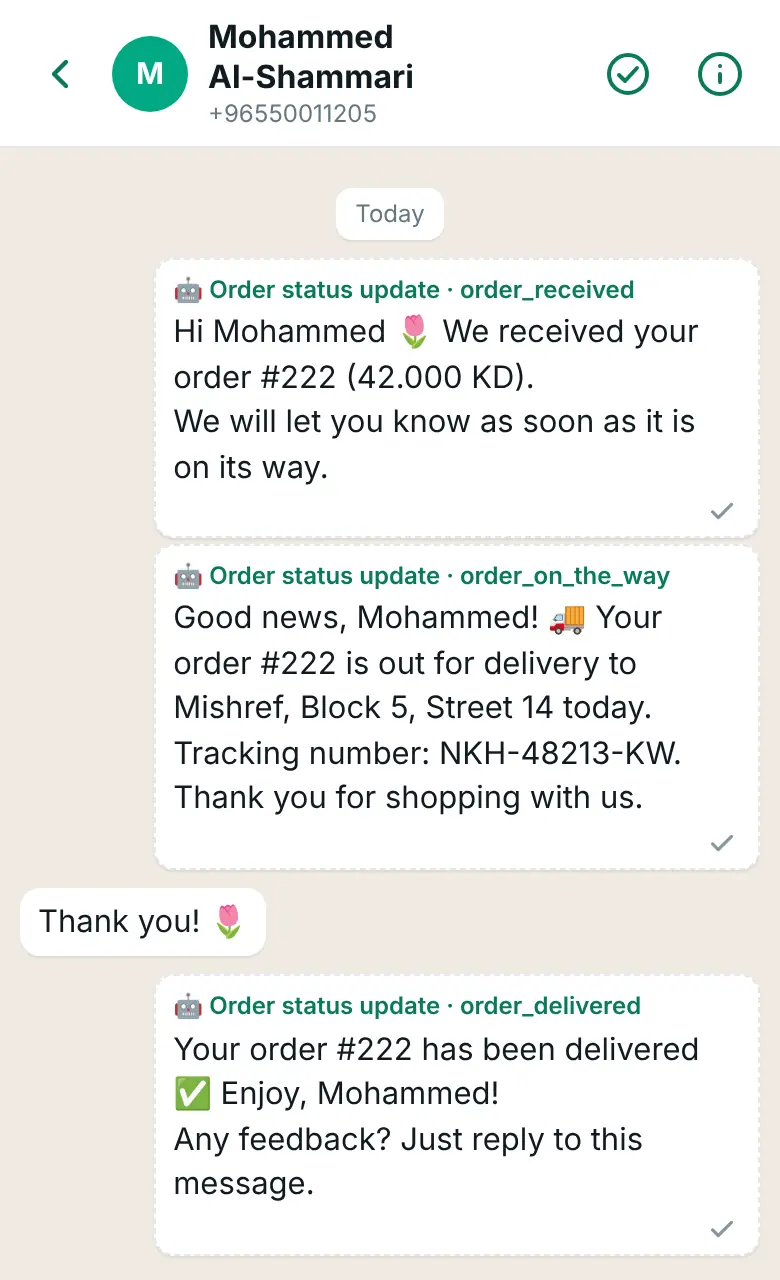
Mohammed's chat, in your inbox app
A normal day with WAPI Connect Pro
The plugin sends the messages. You step in only when a customer needs a person.
Now in Kuwait
· You
A new order arrives
Mohammed orders, so an alert reaches your own WhatsApp number with the order number, his name, the total and the payment method.
In every plan, from Starter up
See the new-order alertTo you, on your own WhatsApp
New order #222 from Mohammed. Total: 42.000 KD. Payment: cash on delivery.
· Your customer
The order is confirmed
A few minutes later you set the order to “Processing” in WooCommerce. That change, not the order itself, sends Mohammed your confirmation on WhatsApp, with his name, order number and total.
In every plan, from Starter up
How order messages workTo Mohammed, on WhatsApp
Hi Mohammed 🌷 We received your order #222 (42.000 KD). We will let you know as soon as it is on its way.
· Your customer
A customer writes “menu”
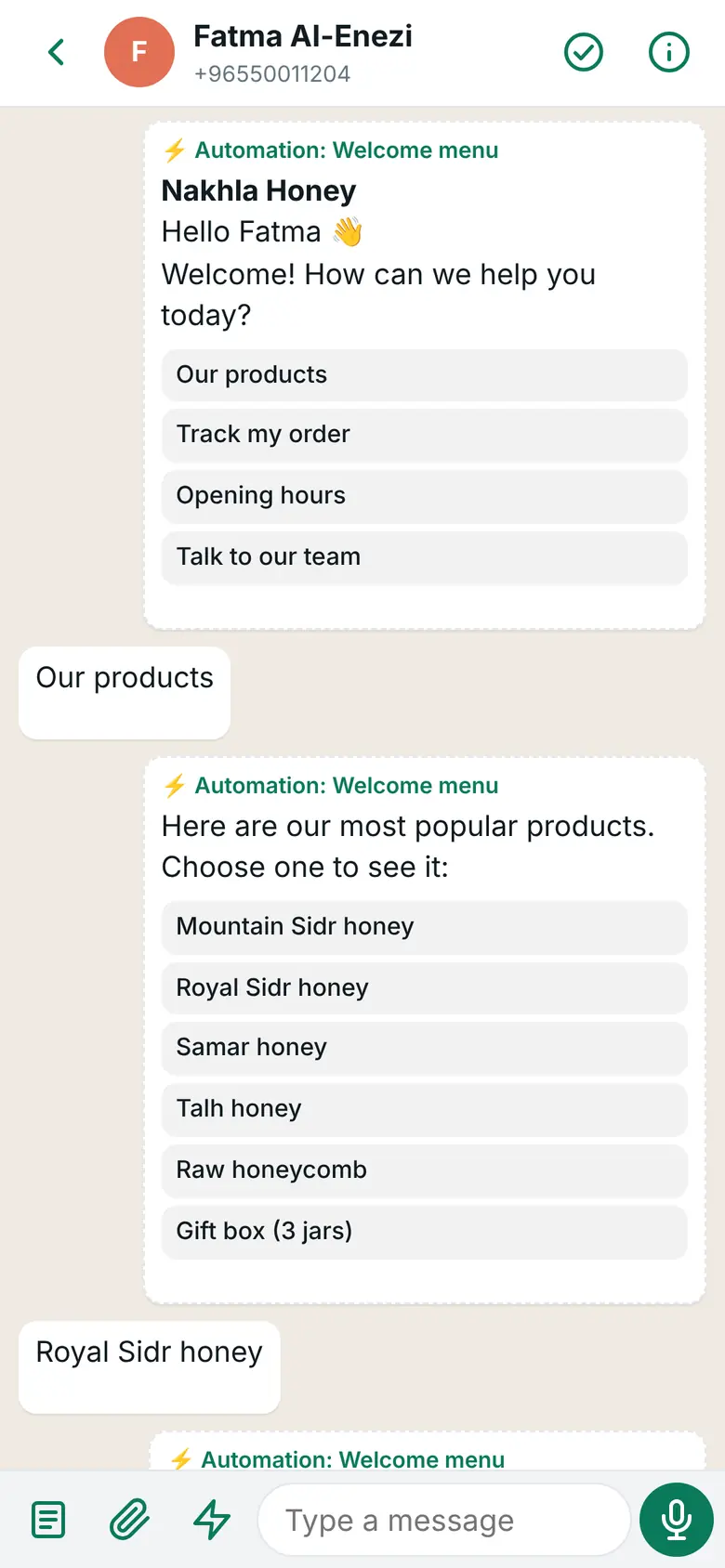
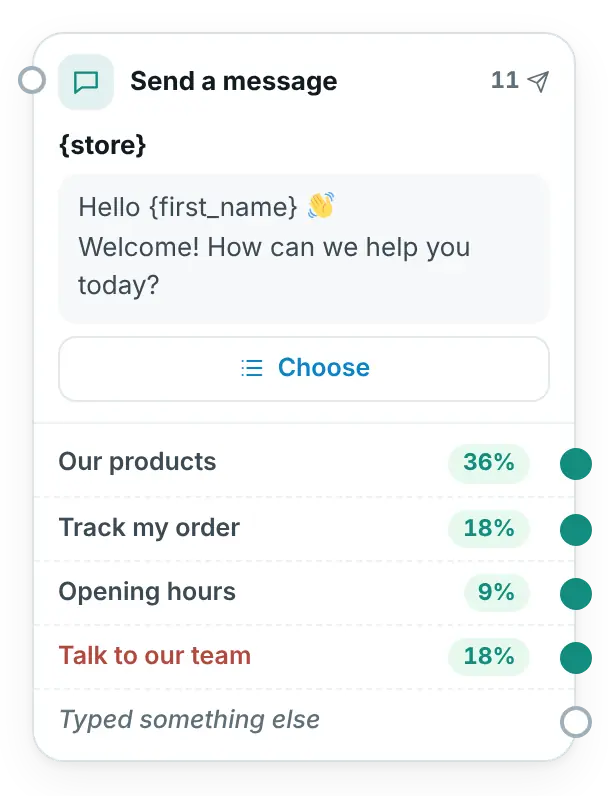
The automation answers by itself with your menu. A tap on a choice shows your products, or the status of their latest orders.
Pro plan and up
Explore automationsFrom Mohammed
menu
To Mohammed, sent by the automation
Hello Mohammed 👋 Welcome! How can we help you today?
Choose
The choices behind “Choose”
Our products · Track my order · Opening hours · Talk to our team
· You
A customer asks for a person
The customer writes “agent” or taps “Talk to our team”, so the automation stops, your phone gets a notification, and you reply from the inbox app.
Pro plan and up
See the inbox appFrom Mohammed, a tap on a choice
Talk to our team
To Mohammed, sent by the automation
Sure! One of our team will answer you here shortly. 🙏
To you, a notification on your phone
🙋 Mohammed
Wants to talk to a person
An example day on a demo store; the times are for illustration.
What to know first
0%. We add nothing to WhatsApp message prices. Meta bills you directly, at its rate for the customer’s country.
Your own Meta account
The number, templates and invoices sit in your business portfolio, through Meta’s official Cloud API. There is no middleman between you and Meta.
Arabic and English
A full dashboard in both languages, and message templates in Arabic or English.
Made in Kuwait
Open-source code (GPL) your team can review before installing.
For a small shop, and a large organisation too
Any WordPress site that talks to its customers on WhatsApp: from an abaya shop run from home to a company, bank or government body that wants everything to stay in its own account.
Stores in Kuwait and the Gulf
Every order update on WhatsApp, in Arabic, from your store’s own number.
Perfume, oud and beauty
Win back the perfume they almost bought, with a timely reminder.
Abaya and fashion
From an Instagram ad to a paid order, inside one WhatsApp chat.
Honey, dates and coffee
Customers come back every season, with offers they agreed to receive.
Restaurants, sweets and flowers
Preparing, on the way, delivered: customers know without calling you.
Agencies and WordPress developers
One license for five client sites, and a tool that finds setup problems for you.
See every kind of store we help
We run it on our own honey store, almorshedhoney.com.
For companies, banks and government bodies
If your site runs on WordPress, this is what your IT team will want to know. You do not need WooCommerce: the inbox, automations, campaigns and contacts work on any WordPress site.
- Your own account
- The number, templates and Meta invoices sit in your own Meta business portfolio. We are not a middleman between you and Meta.
- Your data stays with you
- Chats, contacts and automation answers are stored in your site’s database. The license check sends us only the key, the site address and the plugin version.
- Code you can review
- Open source (GPL): your team can read every line before installing.
- Consent and privacy
- A consent log for every contact, marketing stops by itself for anyone who writes “stop”, and personal data export and erasure through WordPress tools.
- AI with limits
- Off unless you add your own key. Login codes, card and account numbers are removed before anything is sent, and the chat goes to a person when needed.
- An eye on the account
- Meta’s daily messaging limit, quality rating and template problems, with alerts by email and on the phone.
Requirements: WordPress 6.0 or later, PHP 8.1 or later, HTTPS. WooCommerce 7.0 or later only for the store features.
Not offered yet: separate staff accounts, a CRM connection, or answering calls. We claim no compliance certification.
What the plugin does, in five parts
For each part: what your customer gets on WhatsApp, what you see, and the smallest plan that includes it.
Your customer hears about every order on WhatsApp, without asking you
Once, in WordPress, you choose one message for each order status. After that, every order goes like this. In every plan, from Starter up.
A customer orders, and you get an alert
A WhatsApp message to your own number with the order number, the customer’s name, the total and the payment method.
You change the order’s status
In WooCommerce, as you do today. For example to “Out for delivery”, a status the plugin can add for you.
Your customer gets your message
Your text for that status, with their name, the order number and the tracking number filled in from the order. Each status is sent once per order.
What your customer gets on WhatsApp

What you set once in WordPress
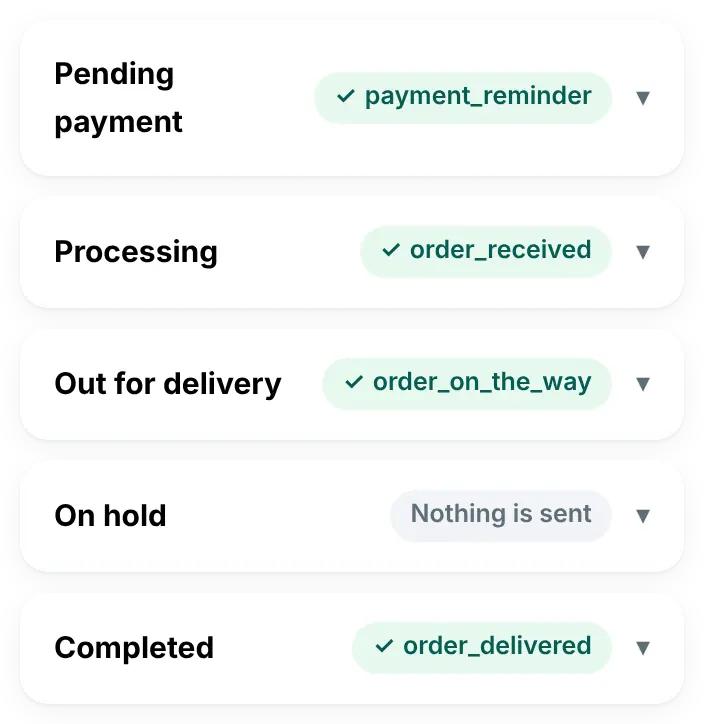
A message template is your text with blanks that the plugin fills from the order. Ready templates in Arabic and English are in the plugin, and Meta reviews each one before it can be sent, usually in a few minutes and at most within 24 hours. How order messages work
Abandoned-cart reminders Every plan
A shopper who agreed to messages leaves the cart and gets up to three reminders, with a link that fills the cart again. You see who bought after a reminder.
See cart remindersWhatsApp login code Every plan
The customer types their WhatsApp number on your login or checkout page, gets a code on WhatsApp and is signed in, with no password.
See WhatsApp loginCash-on-delivery confirmation Every plan
Unpaid cash-on-delivery orders get a message with Confirm and Cancel buttons. For a tap to change the order’s status by itself, add your Meta app’s secret key once, in Settings → WhatsApp API; without it, the tap only adds a note to the order.
See Confirm and Cancel
Every customer chat on your phone, so you can answer from anywhere
Pro plan and up. You add the app from your own site to the home screen, no app store. Notifications on iPhone need iOS 16.4 or later; on Android it runs in Chrome.
A customer writes to your store
To your store’s WhatsApp number. If an automation is on, it answers first.
Your phone shows a notification
With the customer’s name and the start of the message.
You reply from the inbox app
With the customer’s orders next to the chat, and saved replies one tap away.
What you see on your phone
Next to the chat

Inbox app Pro plan and up
Every store chat on your phone, with notifications on iPhone and Android.
See the inbox appSaved replies Pro plan and up
Send common answers with one tap.
Done and rating Pro plan and up
Close the chat, then ask the customer for a rating with buttons.
Calls log Pro plan and up
Every WhatsApp call shows in the customer’s chat, with an alert for each missed call.
See the calls log
Your WhatsApp answers common questions by itself, and passes the chat to you when the customer asks
Once, in WordPress: you start from a ready automation and change its words. It answers only customers who wrote to you in the last 24 hours. Pro plan and up; AI replies: Business plan and up.
A customer writes, or taps your ad
For example “menu”, or they arrive from your click-to-WhatsApp ad, a link or a QR code.
They get your menu with buttons
A tap shows your products with a Buy now button, or the status of their latest orders.
They ask for a person, and you take over
If they write “agent”, the automation stops, your phone gets a notification and you carry on from the inbox app.
What your customer gets on WhatsApp

What you build once in WordPress
Automations Pro plan and up
A welcome menu with buttons, questions that save the answer, and your products inside the chat with a Buy now button. Starts from a click-to-WhatsApp ad, a link or a QR code.
Explore automationsHand over to a person Pro plan and up
From any step, when the customer asks: a word like “agent” stops the automation and alerts your team on their phones.
AI replies Business plan and up
Answers about your store and products with your own AI key, handing the chat to a person when needed. It cannot see the customer’s orders.
How AI replies work
Send an offer on WhatsApp to the customers who agreed, and see who got it
Business plan and up. Meta bills each marketing message to your own account.
You choose who gets it
For example recent buyers or a tag. Only contacts who agreed to offers are counted.
You pick a template and send
An approved template with a picture and a coupon button. Send now or schedule it.
You read the report
Delivered, read and replied, and why any message failed. Anyone who writes “stop” gets no more offers.
What your customer gets on WhatsApp

What you see after sending

Campaigns Business plan and up
An image or video, a coupon button and a link button in one message. The report shows delivered, read and replied, and the reason for each failed message. A campaign pauses by itself if Meta flags a problem with your account.
How campaigns workContacts Business plan and up
Sync from your store, import Excel or CSV, tags and a consent log. Anyone who writes “stop” stops getting marketing messages automatically.
See contacts
If your WhatsApp messages stop, you find out why and what to fix
In every plan, from Starter up.
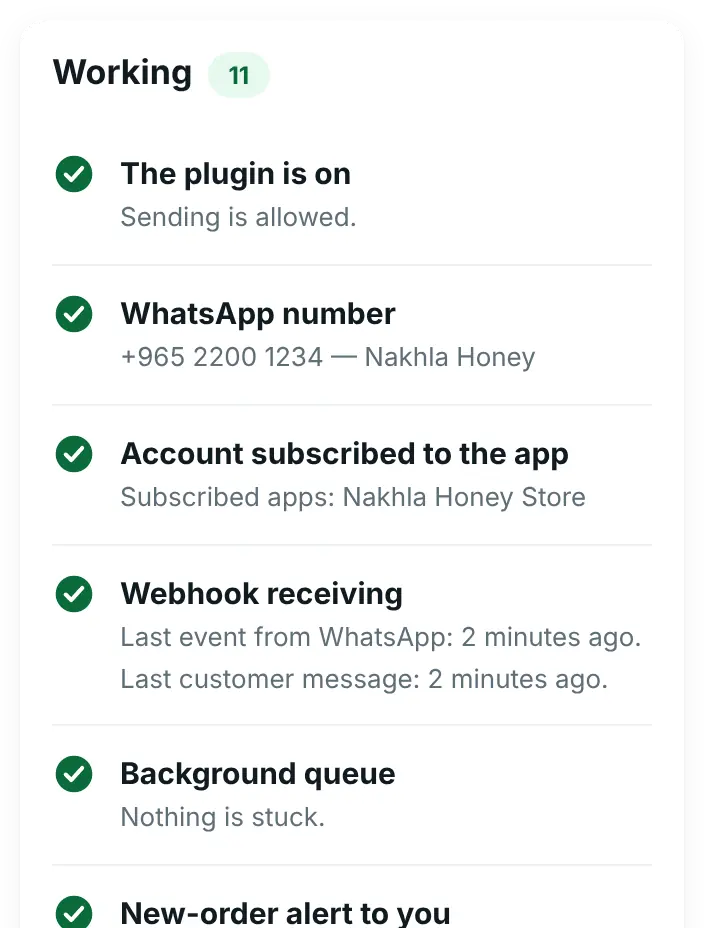
Connection Doctor checks every link
Between your site and WhatsApp. It shows what is wrong in plain words, and fixes common problems in one click.
Account health shows what Meta knows
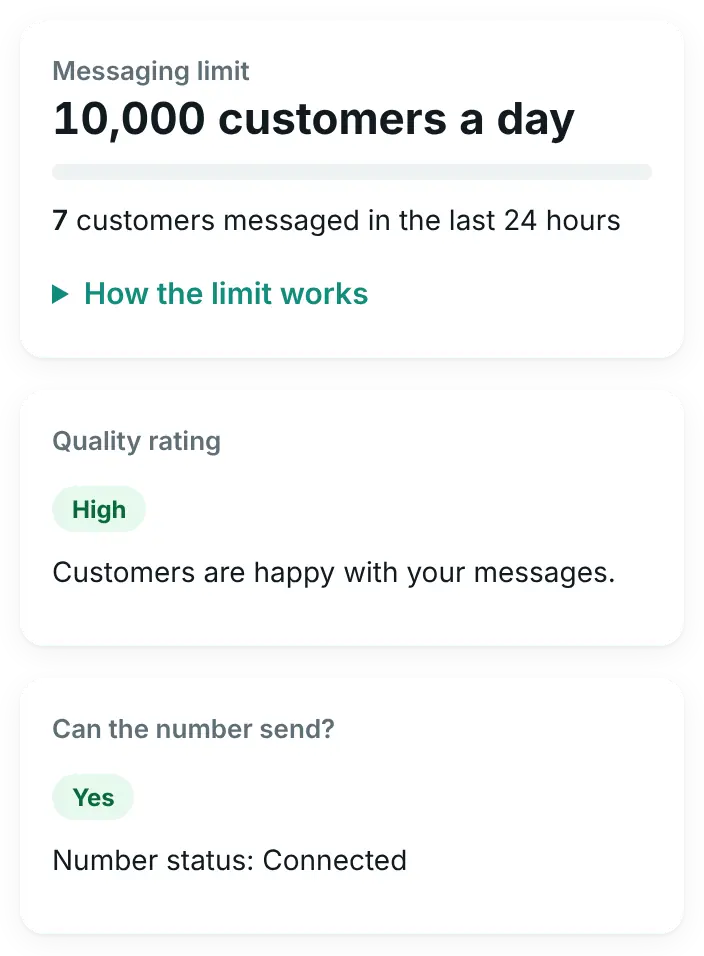
How many customers you may message a day, your quality rating and what WhatsApp cost you.
Bad news reaches you
When Meta reports a problem: an email and a banner on the plugin screens, and, Pro plan and up, a notification on your phone.
When something is wrong

What Meta knows about your number
Connection Doctor Every plan
Checks every step between your site and WhatsApp and tells you exactly what to fix.
Account health Every plan
Meta’s daily messaging limit, quality rating, template problems and costs. If something goes wrong, you get an email and, Pro plan and up, a notification on your phone.
See account health
A two-minute tour
The plugin itself on a demo store, with written captions. Pick the part you care about.
2:24 long, with no sound; the explanation is written on screen.
Read the video as text
WhatsApp for your WooCommerce store, with WAPI Connect Pro.
Each order status sends its own WhatsApp message.
Pick an approved template and the plugin fills in the order details.
The preview shows the message filled in with a real order.
If a customer leaves a cart, they get a WhatsApp reminder with a link back to it.
You see the sales that came back after the reminders.
Your team answers every chat from the inbox app on their phones.
The welcome menu answers first: products, orders, opening hours.
Saved replies: one tap and the answer is ready.
The customer's orders are right there, next to the chat.
Automations answer for you, day and night.
Build the conversation like a map: messages, buttons, products and a hand-over to your team.
Every step shows how many customers chose it.
Campaigns: a template with a picture and buttons, sent only to customers who opted in.
Choose who gets it: a tag, recent buyers, or everyone.
The report shows who received it, read it and replied, and why some messages failed.
Account health: your daily limit, quality rating and costs from Meta.
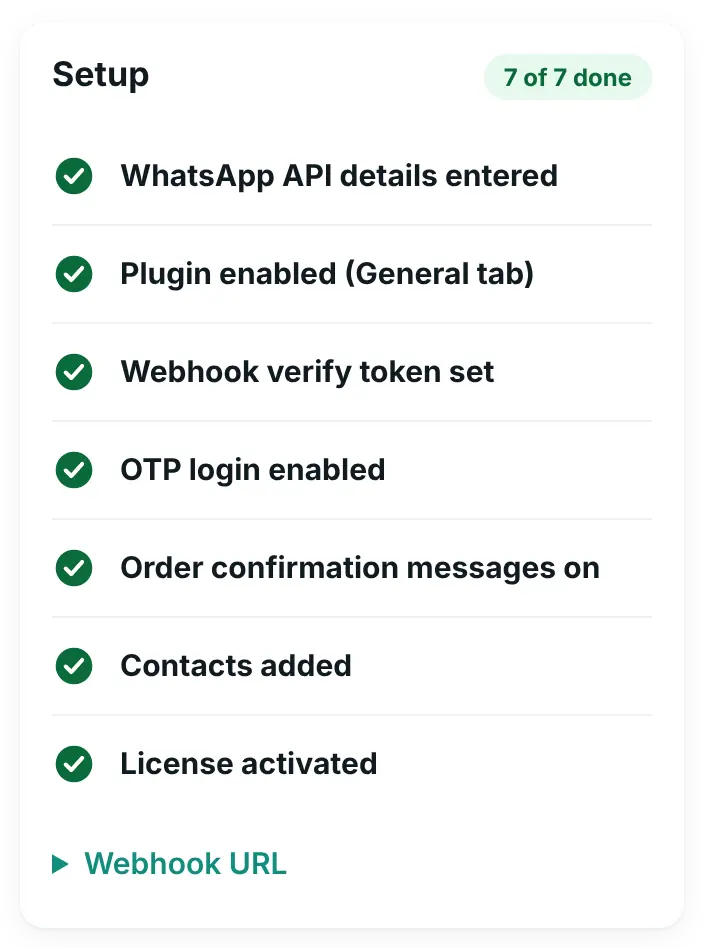
The Connection Doctor checks every step of the connection and tells you what to fix.
Install it, connect your number, and start today.
Live in 4 steps
Installing the plugin is quick. Meta’s business verification and template review can take from a few hours to a few days.
Install the plugin
Upload one file to WordPress, then activate your license key.
Connect your number to Meta
The Connection Doctor checks each setting and tells you what is missing.
Choose your templates
Choose one approved template for each order status, in Arabic or English.
Install the inbox app on your phone
You get a notification for every customer message.
A clear yearly price for each site
Launch prices until 31 December 2026, and you keep your price when you renew.
Starter
$55a year
≈ 17 KD · about $4.6 a month · 1 site
Order messages, login codes and cart reminders
Order messages and the new-order alert, WhatsApp login codes, abandoned-cart reminders, the Connection Doctor and Account health.
From 1 January 2027: $79
Ask us about StarterPro
$125a year
≈ 38 KD · about $10.4 a month · 1 site
Our suggestion for most stores: talk to customers from your phone and let automations reply
Everything in Starter, plus the inbox app, automations and the calls log.
From 1 January 2027: $179
Ask us about ProBusiness
$209a year
≈ 64 KD · about $17.4 a month · 1 site
For stores and companies that market on WhatsApp to customers who agreed
Everything in Pro, plus campaigns and contacts, AI replies and priority support.
From 1 January 2027: $299
Ask us about BusinessAgency
$419a year
≈ 129 KD · about $34.9 a month · 5 sites
For agencies, developers and groups of stores
Everything in Business, on five sites.
From 1 January 2027: $599
Ask us about Agency
- 14-day refundNo questions asked.
- When the license endsA 14-day grace period, then the WhatsApp features pause until you renew. Your site, settings and data stay as they are, and everything comes back the moment you renew.
- Setup service$99 once: we set up your Meta account, number and first templates with you.
To us, once a year
Your plan’s yearly price. No monthly bill, and no fee on messages.
To Meta, per message
Meta bills your account directly, at its rate for the customer’s country. We add nothing on top.
Optional
The AI provider you choose, only if you use AI replies. They bill you directly.
Common questions
How much will I pay Meta?
Meta charges per delivered message, at its rate for the customer’s country. Since 1 October 2026 it also charges for your replies within 24 hours of the customer’s last message: the first 1,000 each month on each WhatsApp number cost nothing, then Meta charges its service rate. When a customer comes from your click-to-WhatsApp ad, Meta charges nothing in that chat for up to 7 days. The details are on Meta’s pricing page (as of 31 October 2026). We add nothing on top.
Can I use my current number?
Yes. But the number will run on the Cloud API and leave the WhatsApp Business app on your phone, and old chats in the app are not copied over. That is why many stores choose a new number for this. New messages arrive in the inbox app, so you keep replying from your phone.
Does the inbox app work on iPhone?
Yes. Add it to your home screen from Safari. Notifications on iPhone need iOS 16.4 or later. On Android it runs in Chrome.
Do I need to know how to code?
No. You need a WordPress site, a phone number and a Meta business portfolio, plus WooCommerce for the store features only. The install guide walks you through it step by step, or we do it for you with the one-time setup service.
What if it isn’t right for me?
Ask for a refund within 14 days of purchase and you get the full amount back, no questions asked. See the refund policy.
Ready to connect your site to WhatsApp?
Choose your plan today, or ask us anything first.
For companies and organisations, or any question: our management line
+965 6993 7627